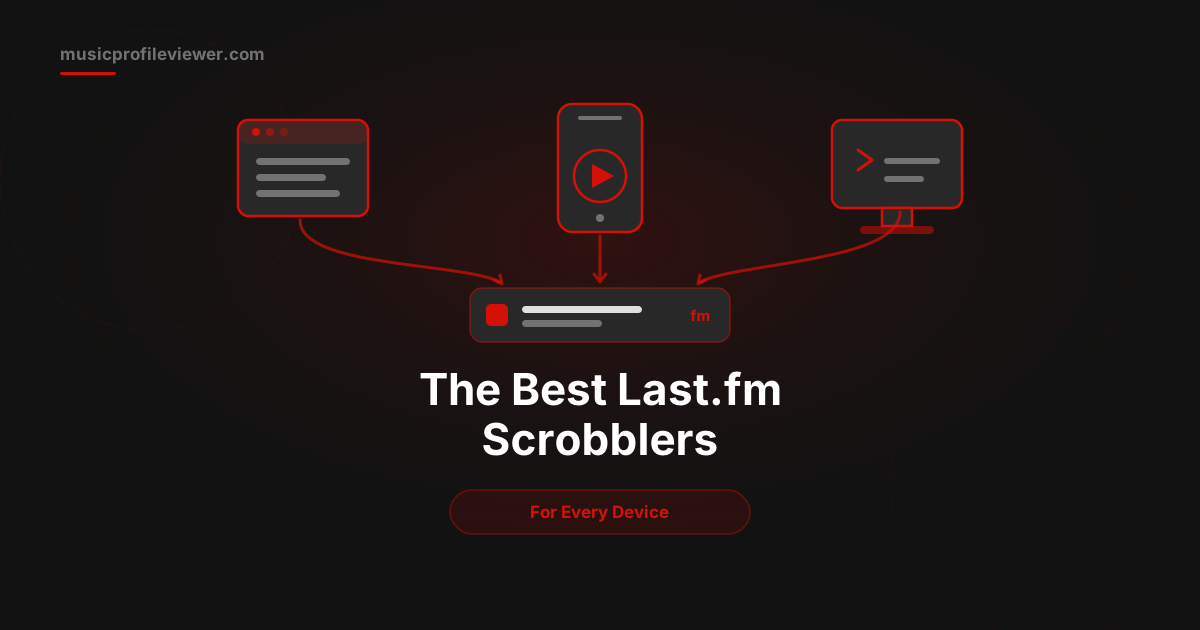
A scrobbler is the piece that sends your song plays to Last.fm. It listens for what you are playing and logs each track to your profile, which is how your top artists, tracks, and albums build up over time. There is no single best scrobbler for everyone, because the right one depends on where you listen and on which device. This guide walks through the main types by category so you can match one to your setup and start scrobbling with confidence.
First, do you even need one?
If you only use Spotify, you may not need a separate scrobbler at all. Spotify connects to Last.fm directly in your account settings, with no extra app required. Once linked, everything you play on Spotify scrobbles on its own. See how to connect Last.fm to Spotify for the exact steps. For almost everything else you listen with, a scrobbler fills the gap and captures plays that would otherwise go unrecorded. Think of it this way: Spotify is the one big source that talks to Last.fm on its own, and a scrobbler is how you bring every other source into the same record.
Browser scrobblers
If you listen in a browser, whether that is YouTube Music, the Apple Music web player, SoundCloud, or dozens of other sites, a browser extension scrobbler is the easiest fix. You install the extension, sign in to Last.fm once, and it scrobbles whatever plays in your tabs. This is the most flexible option in this space because a single extension can cover a long list of web players at once, so you are not juggling a different tool for every site. It is a strong default for anyone whose listening happens mostly on a laptop or desktop through the web.
Phone scrobblers
On mobile the approach splits by platform:
- Android has powerful scrobblers that watch playback system-wide. You grant notification access, sign in to Last.fm, and they scrobble almost any music app on your phone, including Apple Music and YouTube Music. Because this type reads playback across the whole system, one app handles nearly everything you play.
- iPhone is more locked down, so scrobbling usually means a dedicated scrobbler app or a music player app with Last.fm support built in. You play your music through that app and it scrobbles as you go. There is no system-wide equivalent, so the app you play in matters more here.
Desktop scrobblers
For music you play on a computer, a menu-bar or tray scrobbler watches your player and logs plays quietly in the background. It sits out of the way and reports each track as it finishes. Beyond standalone scrobblers, several established desktop music players include their own Last.fm plugins that scrobble natively once you enable the option in settings. If your player already offers built-in Last.fm support, turning that on is often simpler than adding a separate tool, and it tends to be the most reliable because the player itself knows exactly what finished playing. Standalone tray scrobblers are the better route when your player has no plugin of its own.
Manual and mass scrobblers
Sometimes you want to log plays that did not scrobble automatically, like music from a record, a CD, or a live set. A manual scrobbler lets you add tracks by hand, and a universal or mass scrobbler can log several at once or fill gaps in your history. These tools are handy for edge cases, but use them sparingly. The point of Last.fm is an honest record of what you actually played, so leaning on manual entry too heavily works against the reason you started scrobbling in the first place.
After you pick one
Whatever scrobbler you choose, the setup follows the same idea: install it, sign in to your Last.fm account once, play a test track, and confirm it appears on your profile. If it does not show up, see Last.fm not scrobbling for the common fixes. If you listen across several sources, it is fine to run more than one scrobbler at a time, for example a browser extension on your laptop and a system-wide scrobbler on your phone. Just avoid pointing two scrobblers at the same player, since that can create duplicate plays. If it already happened, here is how to delete scrobbles on Last.fm. For Apple Music specifically, our guide on how to connect Last.fm to Apple Music covers the options in more depth.
Once your scrobbles are flowing, our Last.fm stats viewer lays out your top artists, tracks, and albums from any username, plus a collage you can share.
Scrobbles adding up? See what they reveal. Our Last.fm stats viewer turns any username into a clean breakdown of top artists, tracks, and albums, with a shareable collage. It is free and needs nothing more than a public Last.fm username.